Windows 10 Console SSD Replacement
Overview
This article outlines how to replace the solid-state drive (SSD) in Eos family consoles running Windows 10.
If your console still boots, you can back up all of your data to external storage (such as a USB drive) and restore it onto the console once the replacement is complete. If your console does not boot, you will not be able to back up your data.
Along with the sheet linking to this page, you should have received:
- Replacement solid-state drive (M8363)
- Eos Data Rescue USB drive (4450D1022)
- Re-imaging USB drive (4450D1021)
If you are missing any of these components, contact ETC technical services.
The two USB drives may look very similar. Be sure to pay attention to the labels and make sure you use them in the correct order. The Eos Data Rescue drive should be used first, then the re-imaging drive second. Using the re-imaging drive first will result in loss of data.

I – Back Up Your Data
This step applies to all consoles regardless of the state they're in. Do not assume your console is too far gone to attempt file recovery.

Before replacing the solid-state drive in your device, you must save a backup of the data that is on the original drive. This data includes the following:
- Showfiles
- System settings (network port setup, custom button setup, etc.)
- Saved 3D models, if any
- Custom pixel map media, if any
The process to back up this data will vary depending on whether the device can still boot with the original drive installed.
Original Drive is Bootable
If the device can still start up with the original drive installed, follow these instructions to make a backup of your user data on an external USB drive.
Original Drive is Not Bootable
If the device does not start up anymore, use the included Eos Data Rescue USB drive (4450D1022) to recover your data from the failed drive.
See this article: Eos Family Data Recovery from a Non-Bootable SSD
II – Open the Console
Select your device from the list below and follow the link for instructions on opening the console.
III – Replace the Drive
Select your device from the list below and follow the link for instructions on replacing the drive.
IV – Re-Image the Console
Select your device from the list below and follow the link for re-image instructions.
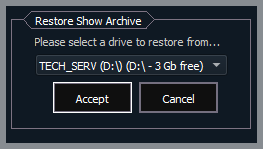
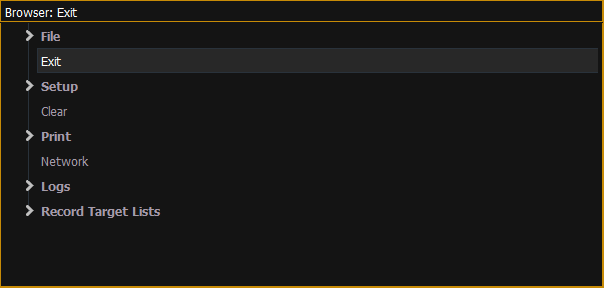
V – Restore Your Data
|
 |
|
 |