Re-Image Instructions | Element 2 Windows 10 | From v3.1.0 and Higher
- Last updated
- Save as PDF
|
Want a printable PDF of these instructions?
Click the PDF Icon above the Table of contents! |
Required Materials
- USB Re-Imaging Drive
- (provided by ETC)
- This should have a label of 4250D1021-x.x.x
- This typically ships as part of the 4350K1017 - EOS FAMILY WINDOWS 10 IMAGE UPGRADE KIT
- A separate USB Drive
- Used to backup show files and existing settings
- USB Keyboard
- USB Mouse
Prepare your console
Before proceeding with the rest of these instructions, disconnect all DMX and network cables from your console. Failure to unplug these cables could result in flashing lights and potential damage to your fixtures. Do not plug your cables back in until the Re-Image process is fully completed and you've reloaded the correct showfile for your system.
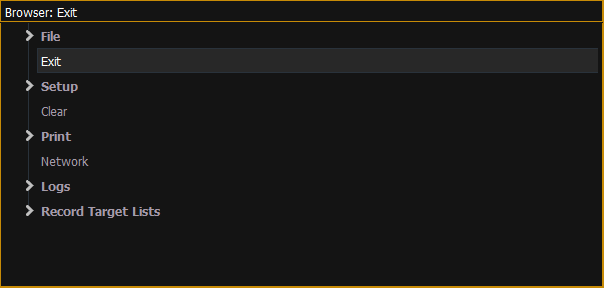
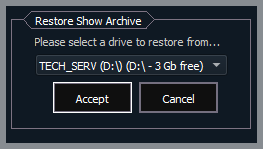
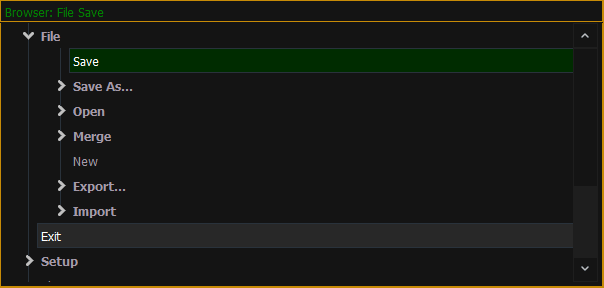
1) Backup Your Data
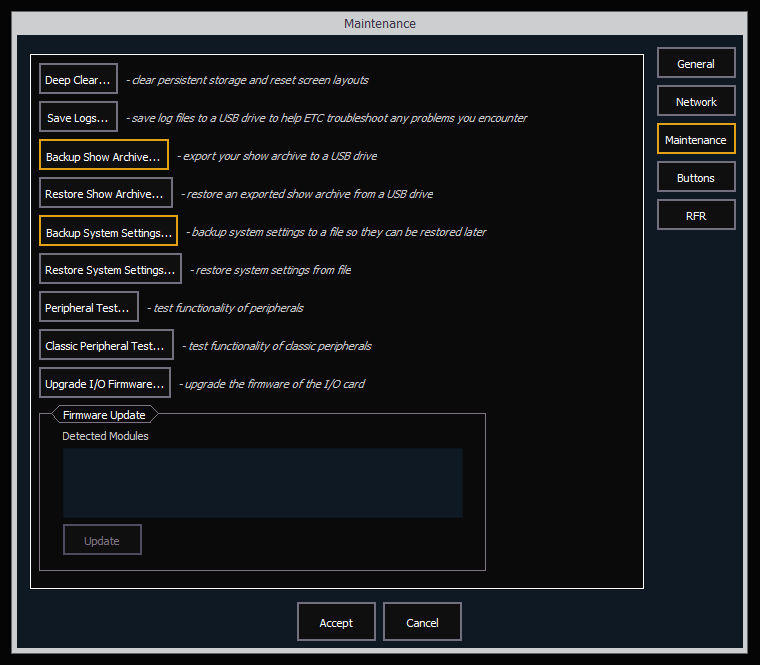
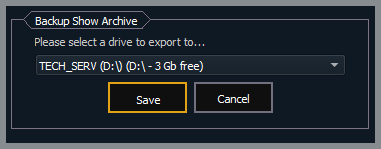
Backup Show Files and System Settings
|
![]() |
|
![]() |
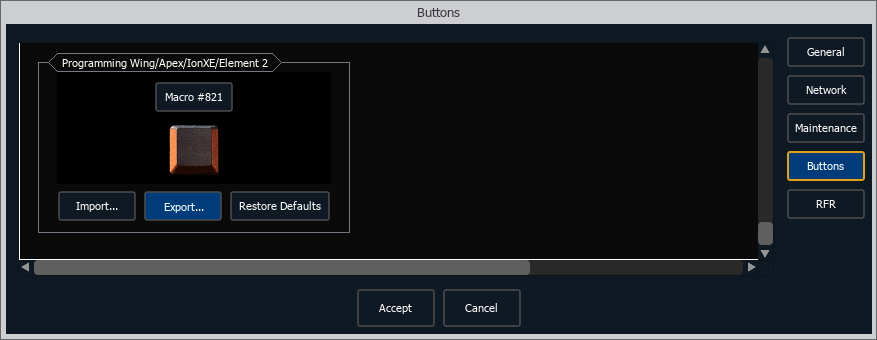
Export Button Configuration
|
![]() |
2) Re-Image Your Console
One Time Boot into Image Utility
|
![]() |
|
![]() |
Re-Install the Disk Image
|
![]() |
||
|
|
||
|
![]() |
||
|
![]() |
||
The USB imaging drive should remain in the console for installation of software. Do not remove it until the process is complete.
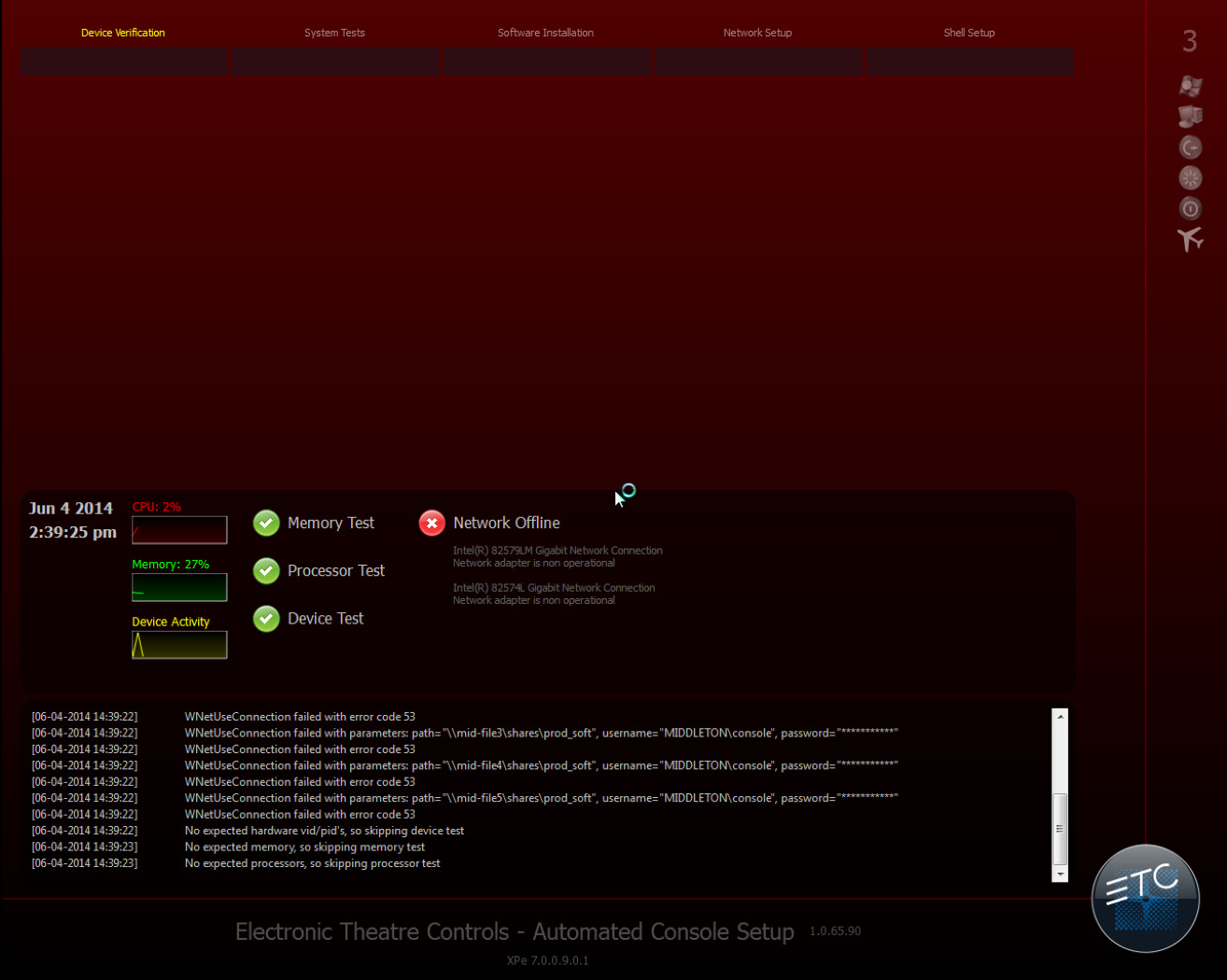
Automated Console Setup Utility
|
![]() |
|
![]() |
3) Restore Your Data
|
![]() |
|
![]() |