
How to Configure sACN Output on the Hog 5 Console
Overview
Using the FixtureNet Port (located on the back of the Hog 5 console or HPU), the steps below may be used to configure sACN (E1.31) output on your console or Hog 5 PC.
Identifying the FixtureNet Port
The FixtureNet port is the Ethernet port Hog 5 OS uses to send Art-Net and/or sACN (E1.31) data to fixtures, media servers and DMX converters. This port may be labeled "FixtureNet" or "FN".
Hog 5 PC Only
Hog 5 PC allows the user to select a computer's network adapter to act as the FixtureNet port. Follow the steps below to configure this.
- [Setup] > (Control Panel)
- Go to the FixtureNet tab
- Select an available network adaptor from the drop down list at the top of the window
- Drop down list grayed out? There is only one network adapter available
- Drop down list blank and grayed? There are no network adapters available
4. Click Apply or OK to save changes
Hog 5 PC will only output Art-Net and sACN universes 1 thru 12 and a USB DMX Widget or ETCnomad key must be connected and assigned to the appropriate universe.

It is NOT recommended to combine HogNet and FixtureNet's Art-Net or sACN out within the same network. When using Hog 5 PC, HogNet and FixtureNet may be configured to a single network adapter, but using separate network adapters is strongly advised.

Configuring the FixtureNet Port
It is important that the IP address of the FixtureNet port is compatible with your lighting network. If you are interfacing with other ETC devices on the network, please be sure to configure the FixtureNet port to an ETC-style IP scheme (i.e. IP address 10.101.x.x; Netmask 255.255.0.0).
Configuring Hog 5 console or Hog 5 PC's FixtureNet from the console:
- [Setup] > (Network)
- Select the Processor assigned to net number 1 (or the internal DMX Processor )
- Select Settings
- Go to the FixtureNet tab
From these configuration menus you can configure the FixtureNet's IP address in one of two ways:
Obtain an IP address using DHCP: Select this option when the network contains a DHCP server (such as a console or router with the DHCP server enabled). This option will gray out the IP Address, Netmask, and Gateway fields.
Use Custom IP Settings: Select this option when the network does not contain a DHCP server. This option will require a manually entered IP Address, Netmask, and Gateway for this device.
Configuring sACN (E1.31) Output
- [Setup] > (Network).
- Select the appropriate Processor.
- Select Settings.
- Go to the Output tab.
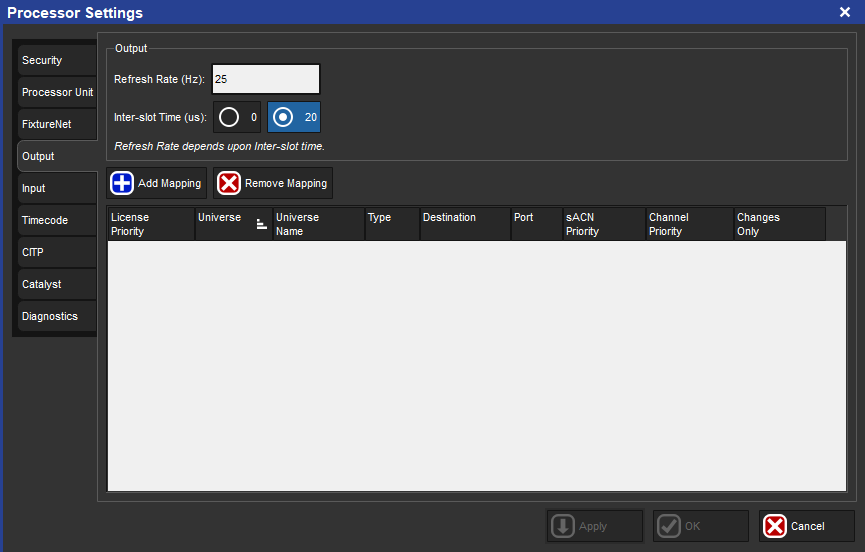
- Press Add Mapping.
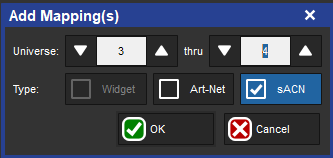
- Select the universes to be output.
- Select the type to be sACN.
- Press OK.
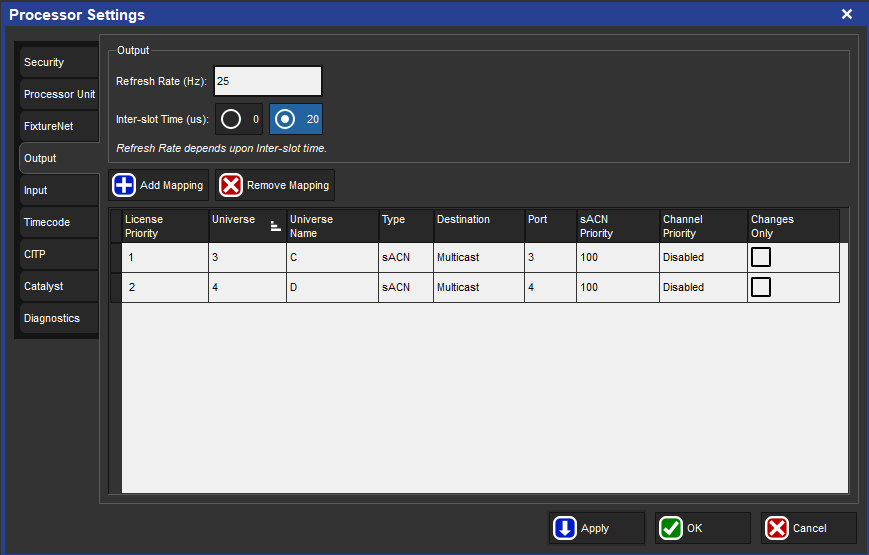
- An sACN output mapping entry will be created in the table with following configurable properties:
- Destination: configure the multi-cast address or specify an IP address for Unicast.
- Port: configure the sACN universe.
- sACN Priority: configure the sACN universe priority.
- Channel Priority: enable and configure sACN per channel priorities.
- Changes Only: check this box to transmit only changes to sACN data.
- Once the mappings are configured, press OK or Apply to confirm the changes.