
Unison Legacy LCD Display Appears Corrupted
Description
If you see garbled or corrupted characters on your Unison Legacy LCD station, the graphics bitmap files that are stored with the configuration in the Unison processor have likely become corrupted. To correct this, you will need to reload the Unison configuration to the processor along with uncorrupted copies of the two bitmap files:
- LCDFONT0.bmp
- LCDGRAFX.bmp
Resolution
- Save the current config to a floppy disk.
- Download the required .bmp files and prepare the floppy disk:
- Unzip the downloaded .zip file to extract the two .bmp files (LCDFONT0.bmp and LCDGRAFX.bmp).
- Copy these two files to the root directory (not in any folders) of the floppy disk containing the config.
The bitmap files linked above for the default ULCD graphics. If this project uses custom ULCD graphics, obtain a copy of the custom bitmap files from ETC or the original installer or programmer.

- Initialize flash on the Unison processor:
- Remove any floppy disk from the processor's floppy drive and do not insert the newly prepared disk until instructed to.
- Press and hold the hidden 'Unison Menu activate' button under the screen until the screen displays 'Menu [Stat]'
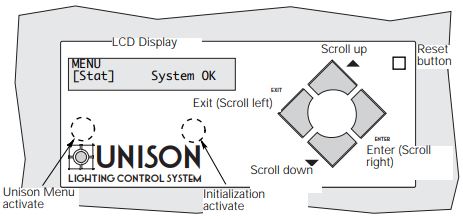
- Tap the down arrow button until the screen says 'Menu [Arch]', then tap Enter.
- Use the up and down arrow buttons to navigate to 'Diagnostics', then tap Enter.
- Navigate to 'Initialize Flash', then tap Enter.
- Once the screen says 'Internal Flash Formatted [Enter]', tap the Reset button in the top right corner.
- After the processor reboots and displays 'System OK' or 'Dimmer Errors', repeat these steps to initialize flash a second time. Then proceed with step 5 below.
- Reload the Unison config from the prepared floppy disk. This will also push the .bmp files to the ULCD(s) and fix the display corruption.